

 Design
Progressive disclosure in B2B tools: 2 levels and what to hide
Hiding navigation cut its discoverability almost in half in an NN/g study. How to split a B2B tool into two levels, and what must never sit behind a click.
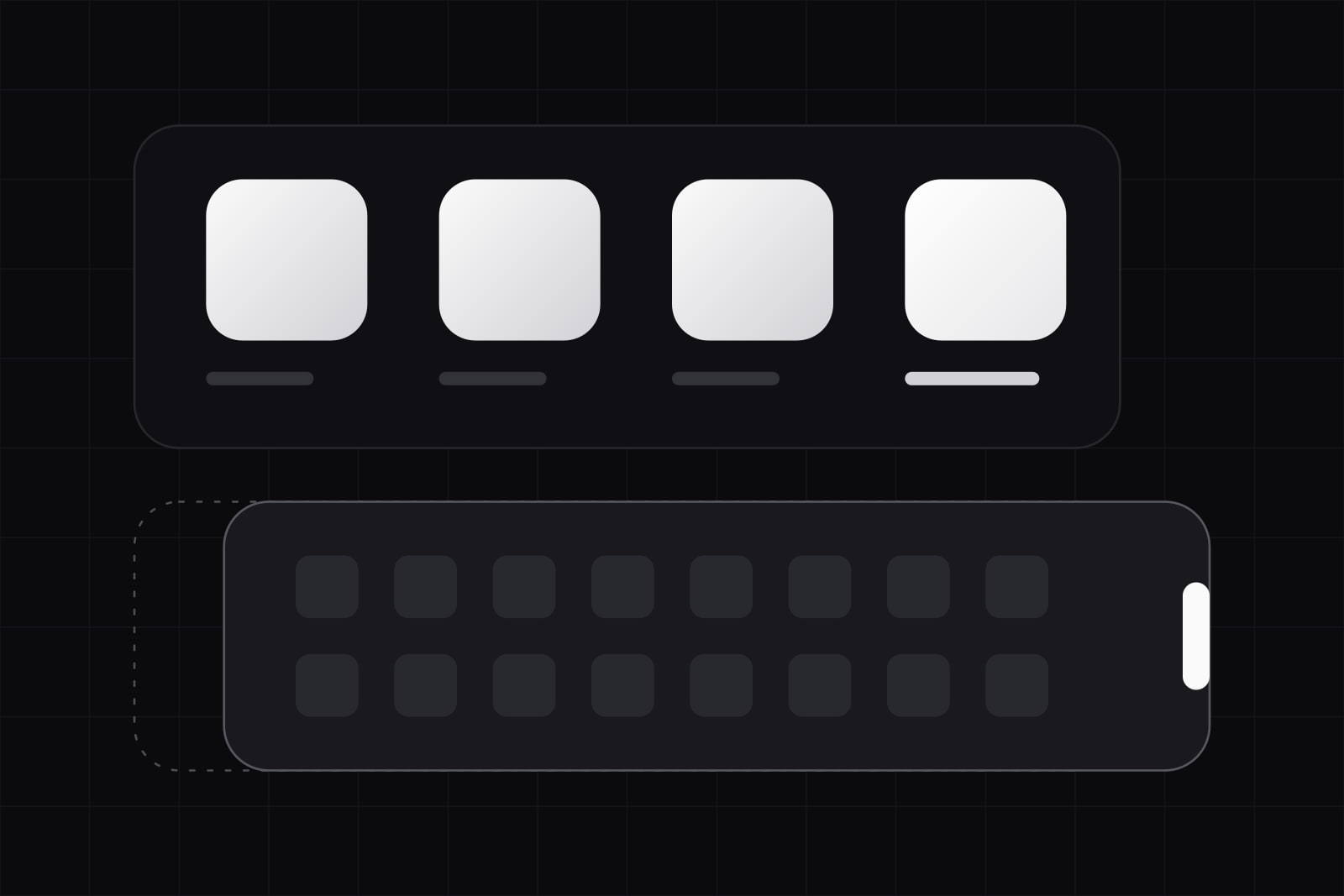
Progressive disclosure is an interaction design technique that puts the few controls most tasks need on the first screen and moves everything else to a clearly labelled second level. In a B2B tool, it is how one screen serves the person who works in it all day and the person who opens it once a quarter, without shipping two products.
Jakob Nielsen described the technique in 2006 as the answer to two demands that pull against each other: users want power, and users want simplicity (Nielsen Norman Group). He also set the limit that still holds. Designs that go beyond two disclosure levels typically have low usability, because users get lost moving between them. The technique is simple to describe. The hard part is the split: what earns a place on level 1, and what can wait.
The 30-second version
- Level 1 holds what the top tasks need. A first-time user finishes the main task without opening anything.
- Level 2 holds the rest, behind one visible control whose label says what is inside.
- Two levels. A third one means the feature set needs pruning.
- Price, permissions, risks and anything irreversible stay on level 1.
- The split comes from usage data, and gets checked again after every release.
Why do B2B tools need progressive disclosure more than consumer apps?
Configurability is part of what a B2B customer pays for. Tax rules per country, approval chains, custom fields, role-based permissions, export formats, retention policies. One screen often serves an operator, a manager and an admin at once. Every one of those options has to live somewhere, and the default place is the screen where someone asked for it.
Showing all of it costs time and errors, and the evidence for that is 40 years old. In the 1984 training wheels study, John M. Carroll and Caroline Carrithers of IBM blocked the advanced functions of a commercial word processor for new users. A blocked menu choice returned a short "not available" message. The beginners learned the basic task faster and scored better on a comprehension test afterwards (Communications of the ACM). In Nielsen's 2026 summary of the study, the control group spent almost a quarter of its time recovering from the error states the training interface had made unreachable (Jakob Nielsen on UX).
Nielsen's 2006 article names three of usability's five components that the technique improves: learnability, efficiency of use and error rate. Experts gain as well. A shorter first screen means less scanning past options they rarely touch.
What does it cost to hide too much?
Hiding has a price, and NN/g has measured it. In a quantitative study with 179 participants on six websites, hiding the main navigation cut its discoverability almost in half, made tasks slower and made them feel harder (NN/g, hamburger menus). The damage was larger on desktop than on phones. On one site, where the menu sat behind an icon in the top right corner, 17% of desktop participants used the navigation, against a 42% average across the six sites (NN/g, desktop navigation).
That is the other half of the trade. Whatever sits on level 2 gets used less, and later in the task. For a setting nobody needs daily, that is the goal. For a daily tool, it is a defect that charges a click on every visit. Nielsen calls the running total disclosure debt: extra clicks and support tickets for every feature buried in the wrong place.
How do you decide what goes on level 1?
Split by how often a task happens, then test the result with real users. Four rules carry most of the decision.
1. Level 1 finishes the top task
Nielsen's workbench test asks one question: can a first-time user complete the product's top task using only what is visible on first load? His rule of thumb is that people should complete about 80% of their tasks without opening anything. If the main task needs the drawer, the split is wrong.
2. Split by frequency of use, with data
The evidence comes from product analytics, field studies and support logs. For an application, Nielsen's advice since 2006 is to instrument the code and record how often each feature is used, and to pair the numbers with observation, since a page can collect traffic from people who reached it by mistake. A new product with no data starts from task analysis and field studies, then instruments the first release and revisits the split.
Persona labels make a poor guide here. Alan Cooper's term for the people who use software every day is perpetual intermediates: they learn enough to do their work, and few of them ever become the settings-mastering expert an "expert mode" assumes. An experienced user spends most of the day on level 1 and opens level 2 for the occasional unusual task. Progressive disclosure sorts tasks by frequency, and that serves both groups with one design.
3. Never hide what the user needs to decide
Decision-critical information stays on level 1: price, requirements, risks, privacy terms. A B2B tool adds its own entries to that list. The billing change when an admin adds 20 seats. Which teams will see a record once it is shared. The fact that deleting a workspace deletes its audit log as well. A collapsed panel is a fine home for a custom PDF footer. It is the wrong home for anything that spends money, writes to a customer or cannot be undone.
The GOV.UK Design System writes the same rule into its Details component: do not use it to hide information that the majority of users will need (GOV.UK Design System).
4. Stop at two levels, and label the door
When the features will not fit in two levels, group the advanced ones so a user checks one place and can ignore the others; NN/g suggests card sorting to find the groups. The control that opens level 2 needs strong information scent. "Advanced filters" says what is behind it. "More" says nothing. Keep that control in the same position on every screen, so what a user learns on one screen works on all of them.
Progressive disclosure vs staged disclosure
Staged disclosure is the wizard: a fixed sequence of steps, each showing a subset of the options. The two patterns answer different problems.
- Progressive disclosure puts the core features first and secondary ones behind a control. Most users never open level 2. Use it on screens people come back to: a filter bar, a record view, a settings page.
- Staged disclosure orders options by when they come up in the task, and later steps can matter as much as the first. Every user goes through every step. Use it for a one-time sequence: connecting an integration, setting up SSO, a first data import.
Mixing them produces the worst case: a long sequence that also hides things. Our guide to long forms people finish covers when breaking a form into steps helps.
What it looks like on a real B2B screen
Take the screen where an accounts team creates an invoice. Level 1 holds the customer, the line items, the due date and the total with tax, because the total is what the user is about to commit to. Level 2 sits behind a control labelled "Invoice options": purchase order number, custom footer, currency override, payment terms override. If analytics show the purchase order field opened on most invoices, it moves up to level 1 for everyone. The tax line stays on level 1 however rarely it changes, because it is the number a customer will dispute.
Keep the layout stable while you do this. Nielsen warns that adaptive menus, which reshuffle options by recent use, break spatial memory. Letting a user pin a field from level 2 to level 1 keeps it intact, because the user did the moving and knows where it went.
Filters on a data table show the second trap. Level 1 carries search, status, owner and date range. Level 2 opens from "All filters (14)", with the count in the label. A filter applied from level 2 has to show on level 1 as a removable chip. Without it, a user reads a filtered list as the full one and exports the wrong data. The same goes for errors: a validation error inside a collapsed section has to open the section or be summarised at the top, as we cover in error state UX design. Nielsen puts it in one line: a hidden convenience costs a click, a hidden alarm costs an incident.
How do you make the disclosure control accessible?
The W3C ARIA Authoring Practices define the disclosure pattern. The element that shows and hides the content has the button role, carries aria-expanded set to true or false, and responds to Enter and Space (WAI-ARIA APG). The native details and summary elements give this behaviour without script.
GOV.UK's research on its Details component adds two cautions. Some users avoid the link because they think it will take them away from the page. Some voice control users may not be able to operate it unless they refer to it as a button. Write the label as a description of the content, and test the control with a keyboard and with voice input.
When should you not use it?
- When the hidden content is what most people came to the screen for.
- When the hidden item is a warning, an error or a cost.
- When the design needs a third level. Cut or regroup features instead.
- When the screen is already short. Collapsing two fields on a five-field form adds a click and saves nothing.
Adjacent patterns
Progressive disclosure decides what a screen shows first. Related decisions sit in our pieces on dashboard design, when a table beats a card grid, empty states and onboarding patterns. Each one applies the same test from a different side: what does this user need on this screen, right now, to finish the task.
Sources
- Jakob Nielsen, Progressive Disclosure (Nielsen Norman Group, 2006)
- Jakob Nielsen, Progressive Disclosure: From Training Wheels to Week-Long AI Agents (2026)
- John M. Carroll and Caroline Carrithers, Training wheels in a user interface (Communications of the ACM, 1984)
- Kara Pernice and Raluca Budiu, Hamburger Menus and Hidden Navigation Hurt UX Metrics (NN/g, 2016)
- Kara Pernice and Raluca Budiu, Beyond the Hamburger: How to Make Navigation Discoverable on Desktops (NN/g, 2016)
- GOV.UK Design System, Details component
- W3C WAI-ARIA Authoring Practices, Disclosure (Show/Hide) Pattern
Frequently asked questions
Barely, when the split is right. An experienced user pays one click to open level 2, and spends most of the day on level 1 anyway. If experts open level 2 on almost every visit, the problem is the split, and the fix is to promote what they open. Letting users pin a level 2 control to level 1, and offering keyboard shortcuts for frequent actions, covers the rest without reshuffling the screen for everyone.
The same two levels apply to answers and actions. Jakob Nielsen's 2026 guidance is to give the verdict first in one short paragraph and keep the reasoning, sources and detail behind disclosure controls, with partial or preliminary output labelled as such. For agents that act, level 1 is the outcome plus any decision awaiting approval. Anything that spends money, sends a message or deletes data needs an explicit approval step, never a collapsed log the user might not open.
It depends on how many sections you are hiding and how much they matter. The GOV.UK Design System recommends its Details component over tabs or an accordion when there is only one section of content, and notes that it is less visually prominent, so it suits content that matters less to users. With several sections, an accordion or tabs gives each one its own visible label. Whichever you pick, keep it for content only some users need.
Track how often each level 2 control is opened, per task. A control opened in most sessions of a task belongs on level 1. Read support tickets for questions of the type "where is" or "how do I" about features that exist. Then test both groups, as Nielsen suggests: five newcomers should finish level 1 tasks unaided, and five experienced users should reach level 2 in seconds.
Related services
Related articles
Design Design
B2B website lead generation: 7 steps from traffic to pipeline
B2B buyers rank a shortlist before first contact. 7 steps that turn a B2B website's visits into qualified leads, from the first screen to a reply in an hour. Design