

 Design
Figma MCP design-to-code handoff: 6 steps and its limits
The Figma MCP server gives coding agents design context and a code starting point. Six steps to a clean handoff, and the four gaps it still leaves.
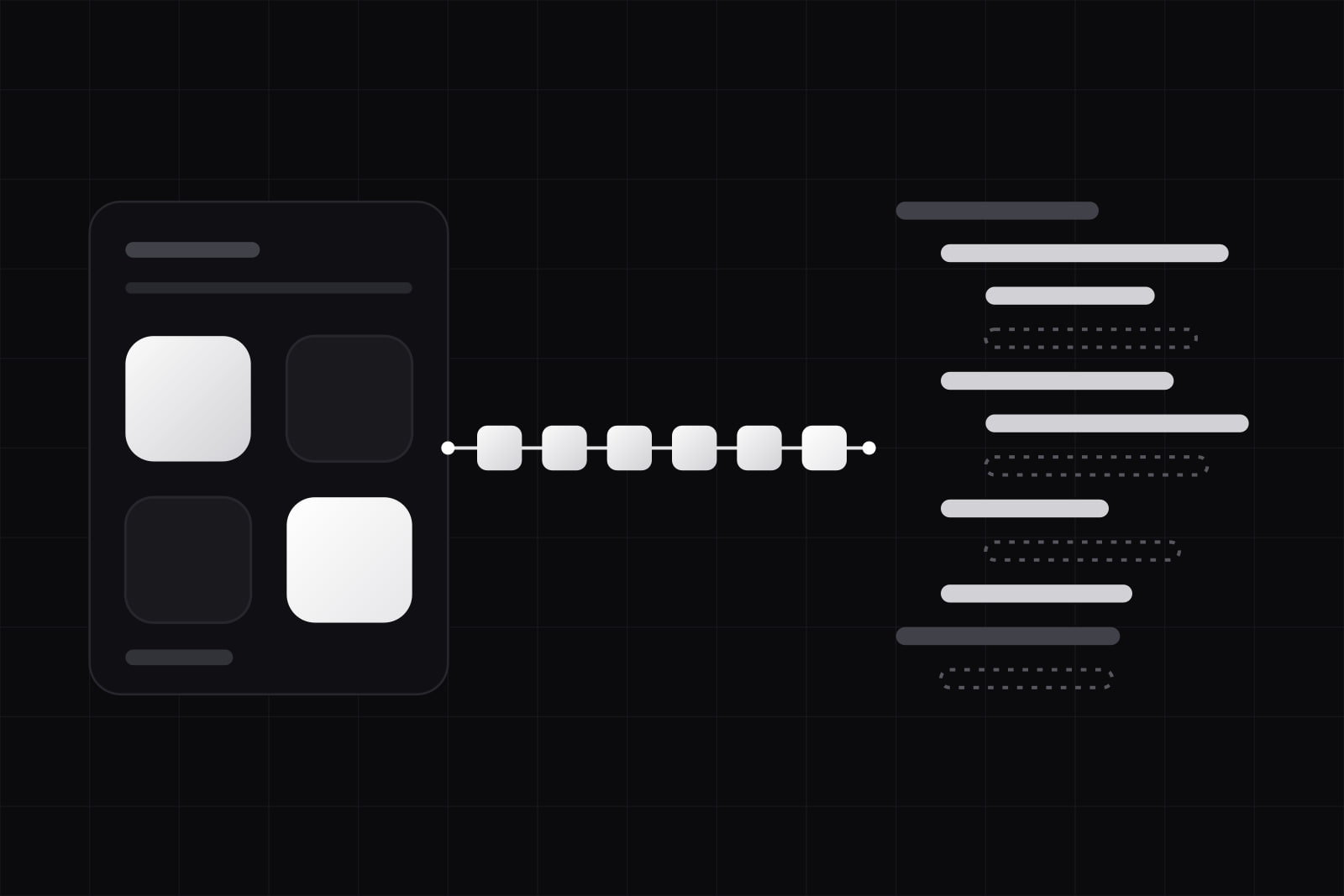
By the end of this guide you will have a Figma MCP setup in which a coding agent such as Claude Code, Cursor or Codex reads a Figma frame and writes code with your own components and tokens. You will also have a short list of the jobs that still need a person.
The Figma MCP server is Figma's Model Context Protocol server that hands coding agents structured design context from a Figma file: layers, auto layout, variables, components, screenshots and, once you set it up, the code each component maps to. Figma's own documentation is blunt about the scope: "The MCP server is not a one-click design to perfect code tool." It sends context and a code starting point. The agent writes the final code, and that code is only as good as what the file, the mappings and your rules give it.
The gap is measurable. In Figma's 2025 AI report, a survey of 2,500 product builders in seven countries, 78% agree that AI significantly enhances the efficiency of their work, and only 32% say they can rely on its output. The six steps below close that gap for the handoff from design to code. If MCP itself is new to you, start with what MCP is and why a SaaS needs a server.
What you need before you start
- A Figma seat that can call the server. View and Collab seats get up to 20 tool calls a month on every plan. Dev and Full seats get up to 200 a day on Professional and Organization, and 600 a day on Enterprise.
- An MCP client Figma supports. Only clients listed in Figma's MCP Catalog can connect, among them VS Code, Cursor and Claude Code.
- A codebase with a component library and tokens. The handoff maps a design onto code you already have. With nothing to map onto, the agent invents it.
- For Code Connect, an Organization or Enterprise plan and a Full or Dev seat, per Figma's help center.
Step 1: Pick the server and check the seat
Figma ships two servers. The remote server, at https://mcp.figma.com/mcp, is the one Figma recommends and the one with the full tool set, including writing to the canvas. It works from links: you paste the URL of a frame or a layer and the agent fetches that node. The desktop server runs inside the Figma desktop app and can also read your current selection, which is quicker when a designer and a developer work side by side.
Then do the arithmetic. Figma's rate limits page sets these ceilings, with per-minute limits on top of the daily ones:
- View or Collab seat, any plan: up to 20 calls a month.
- Dev or Full seat on Professional: up to 200 a day, 10 a minute.
- Dev or Full seat on Organization: up to 200 a day, 15 a minute.
- Dev or Full seat on Enterprise: up to 600 a day, 20 a minute.
One screen rarely costs one call. A normal pass reads the outline, the design context of two or three sections, a screenshot and the assets. So 20 calls a month is a trial, and 200 a day covers one developer working through screens. Writing to Figma files takes a Full seat; a Dev seat reads only.
Step 2: Structure the file so the context is worth reading
The agent reads what the file contains: the component hierarchy, auto layout, variables and layer names. A frame called "Frame 1184", with hex fills and absolute positions, turns into code with hex values and absolute positions. A frame called "Pricing / annual", built from library components with colors and spacing bound to variables, turns into code that can reuse both.
- Bind color, spacing, radius and type to variables. Every raw value left in the file is a raw value the agent may copy into the code.
- Build with library components and their variants, and keep instances attached. A detached instance reaches the agent as a group of shapes.
- Lay out with auto layout, so gaps and padding arrive as numbers with a direction, which map to flex or grid.
- Name layers for what they are. The names travel into the context and often into the code.
Token names matter more here than anywhere else. If the variable is color/action/primary in Figma and color.action.primary in your token file, the agent matches them without help. We set out a scheme that survives this trip in design token naming conventions.
Step 3: Connect your components with Code Connect
Code Connect maps a Figma component to the component in your repository. When a mapped component appears in the frame, the MCP server wraps it in a CodeConnectSnippet that carries the component's current property values, the import statement, a usage snippet and any instructions you wrote for it, as Figma's Code Connect integration docs describe. The agent then writes <Button variant="primary"> from your library instead of rebuilding a button out of a rectangle and a text layer.
There are two ways to set it up. The Code Connect CLI lives in the repository and sends richer snippets, with prop mappings and source paths. Code Connect UI is set up inside Figma, generates the import and a basic snippet, and lets you add instructions for the MCP server: accessibility rules, the props a component must never receive, the wrapper it always sits in. If you map the same library to React and SwiftUI, tell the agent which label to use through the clientFrameworks parameter on the remote server.
Start with the ten to fifteen components that appear on most screens: buttons, inputs, cards, dialogs, navigation. On a Professional plan, where Code Connect is not available, the rules file in step 4 does part of the job by naming the folder your components live in.
Step 4: Write the rules file before the first prompt
The server does not know your conventions unless you give them to it. A rules file (CLAUDE.md for Claude Code, rules for Cursor, custom instructions for Copilot) holds them once, so no prompt has to repeat them. Figma's custom rules guide proposes a required flow, which we keep almost as written:
## Figma MCP rules1. Run get_design_context on the exact node first.2. If the response is truncated, run get_metadata and fetch only the nodes you need.3. Run get_screenshot for a visual reference.4. Download assets only after steps 1 to 3.5. Read the React + Tailwind output as a description of the design. Rewrite it in our stack.6. Use components from src/components/ui. Never write a raw hex, px value or font size.7. Compare the result with the screenshot before calling it done.Line 5 carries the most weight. The default output is React with Tailwind classes, and an agent left alone pastes it in. The rule turns that output into a description the agent translates into your own components and tokens. More on rules that hold in how to write a CLAUDE.md file that steers Claude Code.
Step 5: Fetch one section at a time
get_design_context on a whole page returns a large payload, and a large payload crowds out everything else in the agent's context. get_metadata exists for this case. It returns a sparse XML outline with layer IDs, names, types, positions and sizes, and nothing more. The agent reads the outline, then calls get_design_context on the hero, then on the pricing table, then on the footer, one node at a time.
The prompt steers the output too. "Generate this selection in Vue", "in plain HTML and CSS", "in SwiftUI" or "using components from src/ui" each change what comes back, per Figma's tools reference. When you need tokens rather than code, ask for get_variable_defs by name: it returns the variables and styles used in the selection.
Step 6: Check the result against the design and the system
- Visual. Put the running screen next to the
get_screenshotimage, at the same width. - System. Search the diff for raw hex values, pixel sizes and new components that duplicate existing ones. Each one is drift, and component drift compounds quietly.
- States. List the states the frame does not show (loading, empty, error, long text, disabled) and build each one on purpose.
- Accessibility. Run an automated check and a keyboard pass. A frame says nothing about focus order or labels.
What the Figma MCP server still cannot do
Figma lists three things the server does not do: generate final code, understand your design system by default, and fix or adapt code when issues come up. In practice that leaves four gaps a team has to cover.
- Behavior that was never drawn. A frame is one state at one width. Data loading, validation, permissions and every breakpoint between the drawn ones come from the developer and the spec.
- Judgment on conflicts. When the frame says 18 px and the spacing scale says 16 or 20, someone decides whether the design or the system is wrong. Figma's suggested rule prefers the design system token and adjusts the size as little as possible.
- Writing to the canvas at scale. The
use_figmatool lets agents create frames, components, variables and auto layout directly in a file, by running JavaScript through the Plugin API. It opened in beta on 24 March 2026, is free during the beta and will become a usage-based paid feature. The current limits: a 20 KB response per call, no image assets, no custom fonts, and components published by hand before Code Connect completes. - Any client you like. Only clients in Figma's MCP Catalog can connect. Others join a waitlist.
Common failures and how to fix them
- The server keeps returning React. Name the framework in the prompt and in the rules file.
- You asked for variables and got code. Call
get_variable_defsexplicitly. - It stalls or truncates. The selection is too heavy. Start from
get_metadataand fetch child nodes. - Rate limited in the middle of a sprint. Run
whoami: it returns the authenticated email, the plans the account belongs to and the seat type in each. - Permission errors. The account reads only files it can already open, and the file must belong to a plan the user is in.
What makes this handoff good is what made the old one good: a component library people use, tokens with clear names, and files built from both. The MCP server makes that work pay twice, once for the developer reading the file and once for the agent.
Sources
- Figma: What the MCP sends vs. what the agent does
- Figma: MCP server tools and prompts
- Figma: MCP server rate limits and access
- Figma: Code Connect integration with the MCP server
- Figma: Add custom rules and instructions
- Figma: Write to canvas
- Figma blog: Agents, meet the Figma canvas (24 March 2026)
- Figma Help Center: Code Connect
- Figma blog: Figma's 2025 AI report, perspectives
Frequently asked questions
Yes, with a tight ceiling. Figma's rate limits page gives Starter plans 20 tool calls a month, the same as View and Collab seats on every other plan. One screen usually takes several calls (outline, design context per section, screenshot, assets), so 20 a month is enough to test the setup and not enough to build with it. Regular work needs a Dev or Full seat on Professional or higher, which raises the ceiling to 200 calls a day.
Yes, as long as the rules file does the mapping Code Connect would do. Without Code Connect the server still returns reference code, a screenshot and the variables used in the frame, but the agent has no link from a Figma component to your component, so it tends to rebuild buttons and cards from shapes. A rules file that names the component folder, lists the core components and forbids raw values recovers much of that. Code Connect itself needs an Organization or Enterprise plan, so on Professional this is the setup you have.
It is as safe as the permissions you give it. The use_figma tool runs JavaScript in the file through the Plugin API, needs a Full seat and needs edit permission on that file, so an agent can only change what the signed-in person could change by hand. Keep agent work on a separate page or a copy of the file until someone has reviewed it, and use Figma's version history to roll back. The feature is in beta, free for now and planned as usage-based paid, so budget for it before it becomes part of the team's routine.
Related services
Related articles
Design Design
Error state UX design: what to show when a request fails
A request can fail six ways, from a rejected field to a dropped connection. What each needs on screen, how to make retry safe, and the copy to write. Design